Markers in Markdown++
Markers are pieces of metadata that can be inserted into a document to add different features or change the behavior of the publication. They are useful for adding keywords to improve search relevance, or for instructing ePublisher to pass text through to the output without processing.
Syntax
The Markers command has two main formats. The preferred format is to start with
marker:, followed by the key and value directly askey="value". This simpler version is ideal when you need to write a single marker value.For more advanced scenarios where multiple markers are required in one statement, you can use the
markers:command, followed by a JSON Object Literal. In this case, the marker names are written as keys and their respective values as values. Make sure all keys and values are wrapped in", and separated by:. Multiple key/value pairs can be included, separated by,.A marker value can be empty, as in
marker:DropDownEnd="", and it can contain=and;characters, as inmarker:Hyperlink="https://example.com/page?id=42".A marker name in the
marker:form starts with a letter or an underscore (_) and can contain letters, digits, underscores, hyphens (-), and spaces, as inmarker:Index Entry="setup". It cannot end with a space. Themarkers:form accepts any name.Use each marker name once in a comment tag. ePublisher keeps one marker of each name on an element, so a tag that repeats a name, in either form, keeps only the last value. To give a topic two TopicAlias markers, put each on its own element, such as the heading and the paragraph after it:
<!--marker:TopicAlias="job_info_stationery" ; #job-info-window-->
# Job Info Window

<!--marker:TopicAlias="job_info_project"-->
This window lets you specify information about a job.
Basics
A basic Markers command using the preferred compact version:
<!--marker:Keywords="webworks"-->
# About WebWorks
Adding multiple
marker:statements in a single tag is also acceptable:<!--marker:Keywords="webworks"; marker:Category="documentation"--> # About WebWorksOr, using the JSON format for multiple markers:
<!--markers:{"Keywords": "webworks", "Category": "documentation"}-->
# About WebWorks
The marker command is also available for inline-level syntax:
Add a custom <!--marker:Keywords="inline"-->**marker**.Or using the JSON format for multiple values:
Add a custom <!--markers:{"Keywords": "inline, marker"}-->**marker**.Special Characters in Marker Values
A value in the
marker:form cannot contain a quotation mark ("), a line break, or the characters-->, which end the comment tag. To include any of them, use themarkers:form, where each value is a JSON string. Write a quotation mark as\", a line break as\n, and the>of-->as\u003e:<!--markers:{"Description": "Covers the \"Quick Start\" steps"}--> # Getting StartedMix with Other Commands
Markers can be used in the same comment tag with other commands. Separate them with a
;character. A;inside a quoted marker value, or inside the braces of amarkers:command, is part of the value; only a;outside them separates commands. Below, a Custom Style and a marker are written in the same tag:<!-- style:CustomStyle ; marker:Keywords="webworks" -->Or using the JSON format for multiple markers:
<!-- style:CustomStyle ; markers:{"Keywords": "webworks"} -->
Markers Behavior
Markers associate a piece of metadata with an element on the page. To learn more about ePublisher's built-in markers and what they do, see the Markers reference table.
Using a Marker
To use a marker, first add it to the intended area of the content. The marker should be tagged to a content element, such as a paragraph or heading.
A marker command can also share the comment tag of a list or a blockquote. ePublisher attaches the marker to the first paragraph inside the list or blockquote, so a DropDownEnd marker on a list or blockquote with several paragraphs ends the drop-down after the first paragraph.
<!-- style:Note ; marker:Keywords="installation" -->
> Install ePublisher before you open the project.
Below, a Keywords marker is tagged to a Heading 1 using both formats:
Using the preferred compact version:
<!--marker:Keywords="markers"-->
# Using Markers in Source Content
Using the JSON format for multiple values:
<!--markers:{"Keywords": "markers, content, create"}-->
# Using Markers in Source Content
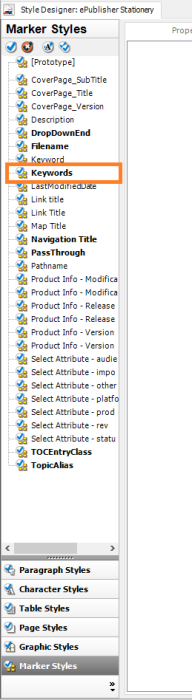
Next, scan the document in ePublisher. This will add the marker to the Marker Styles area of the Style Designer.
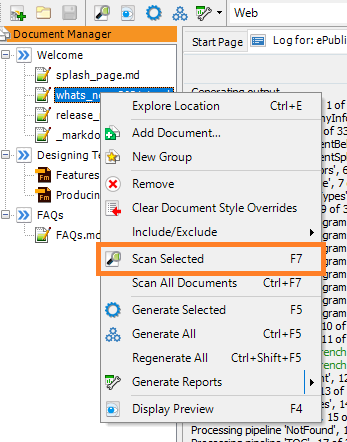
With the marker added to ePublisher, you can now generate output with the new keywords. This marker will improve search relevance in outputs with searching capabilities, such as Reverb 2.0.
Front Matter
Since 2026.1, ePublisher turns YAML front matter at the top of a Markdown++ document into markers on the document's first content element, usually its title heading. This lets you keep a topic's keywords and description with its other metadata:
---
mdpp-version: 1.0
description: How to install ePublisher on a single computer.
keywords: install, setup, first run
---

# Installing ePublisher
The heading above gets a Description marker and a Keywords marker.
Where it goes. The front matter must start on the first line of the file, between two lines that contain only
---.What it can contain. Use flat
key: valuelines only. A value can be plain text, text in single or double quotation marks, or a list in square brackets, such as[install, setup]. Blank lines and lines that start with#are ignored. If any other line appears, such as a nested value or a- itemlist, ePublisher leaves the front matter in the document unchanged and logs a warning.Marker names. Each key becomes a marker with the same name. The
keywordsanddescriptionkeys become the Keywords and Description markers whatever their capitalization. Other keys, such asmdpp-versionordate, become markers with those names, which have no effect unless your Stationery defines a marker style for them.Comment tags on the first element. When the first element already has a comment tag, ePublisher adds the front matter markers to that tag. If the tag sets the same marker, in either the
marker:or themarkers:form, the tag's value wins, so a comment tag can override a front matter value:--- keywords: install, setup --- <!-- marker:Keywords="install, setup, Windows" --> # Installing ePublisher